
How to Fix a Problem with Apple CarPlay
CarPlay is a great way to control your car’s infotainment system using voice or touch. Since we’re so used to controlling our phones through Apple CarPlay, it’s hard for anyone to imagine life in the car without it. If your Apple CarPlay suddenly stops working, it can be frustrating, especially when you’re preparing for an emergency trip or a long road trip. Therefore, it can be helpful to get first aid guidance on how to fix a problem with Apple CarPlay. In this article, we’ll guide you through the steps to troubleshoot a CarPlay problem.
Why Does Apple CarPlay Occasionally Stop Working?
There are many reasons why Apple CarPlay may occasionally stop working. Most cases of CarPlay not working are caused by a broken or unstable connection. Factors like loose cables, damaged cables or plugs, and an unstable or weak wireless Bluetooth signal can prevent your iPhone from connecting to your car. Besides these disconnection issues, software issues (such as outdated versions, technical glitches, or incompatible smartphones, vehicles, or apps) can also cause CarPlay to frequently stop working. It’s important to note that once you enter the DVR interface, CarPlay mode automatically pauses until you exit the DVR display. It will resume in CarPlay mode without reconnecting. Regardless of the cause of this issue, you can follow our simple steps to find a straightforward solution.
What should I do if my CarPlay isn’t working?
CarPlay on the central touchscreen may not work for a variety of reasons. Below are various solutions outlined by the Dickar team for CarPlay issues.
Restart your iPhone and car infotainment system
This is the most common method drivers use to reset smartphone integration. When you restart your devices, all CarPlay features will be ready and function as expected.
Keep CarPlay enabled on both your iPhone and your car
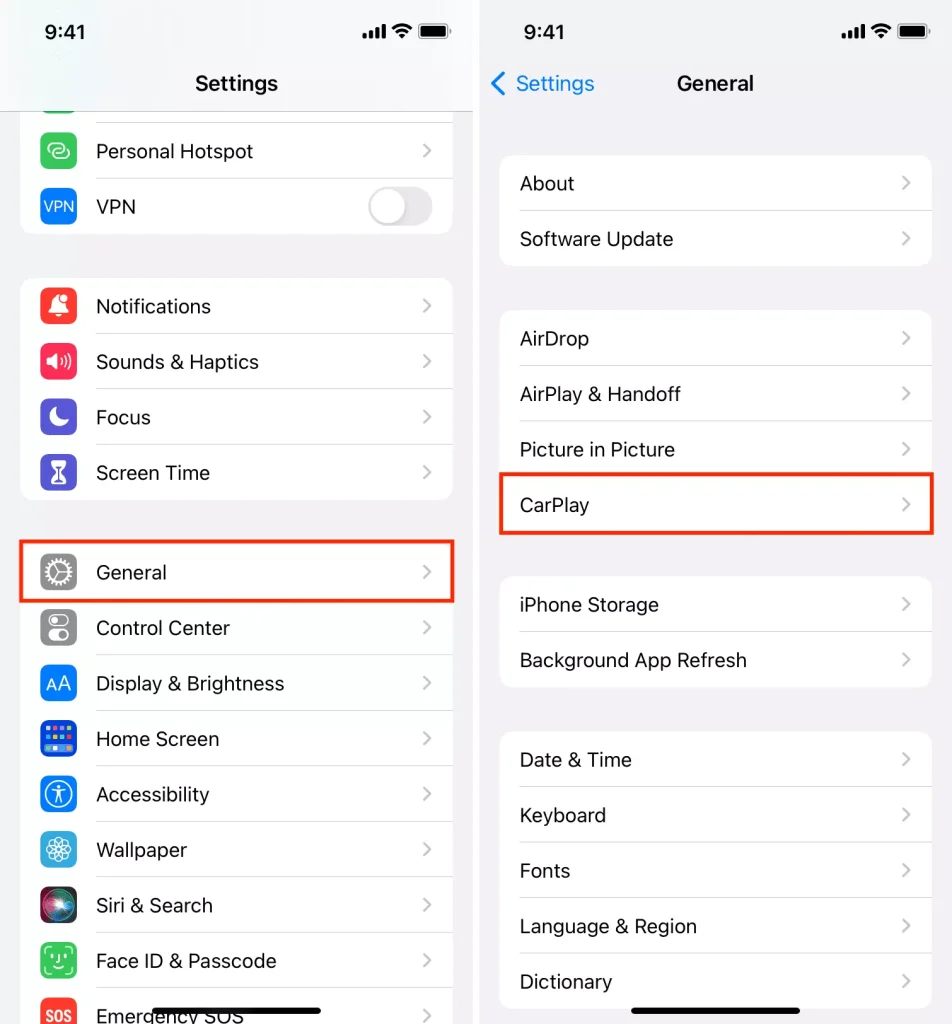
If you experience difficulty connecting automatically for the first time or subsequently, check that the CarPlay buttons on both your phone and your car are illuminated. Please follow the instructions below to check:
1. Go to “Settings” and find “General.”
2. Go to CarPlay and tap it to locate your car.
After enabling CarPlay, if this is your first time connecting, CarPlay will begin searching for and identifying nearby vehicles. If you’ve previously paired a vehicle, you’ll see a list of previously connected models. In this case, you’ll need to check “Forget this vehicle” and rescan and pair your vehicle to ensure stability.
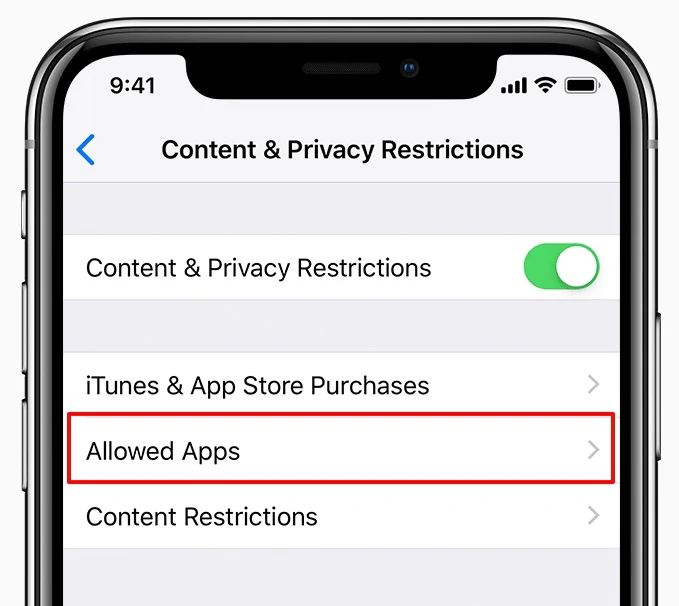
If CarPlay on your iPhone still doesn’t work, try configuring it in Settings > Content & Privacy Restrictions > Screen Time. You’ll then see an option called “Allowed Apps,” which is typically accessed when setting permissions for features or apps displayed on the CarPlay home screen. If your CarPlay switch is gray on the left, slide it to the right to enable green permissions.
Make sure the USB cable is working properly
For wired CarPlay, the USB cable is the communication link between your phone and your car stereo. Check the data cable between your iPhone and car for loose connections. If so, reconnect and reconnect to ensure a stable and smooth connection.
If you’ve connected the Lightning cable correctly but the CarPlay interface still doesn’t display or suddenly disconnects, you need to check the integrity of the Lightning cable. Sometimes, a damaged or aged cable can prevent the phone from connecting properly to the car’s display.
In addition to checking for wear on the exterior of the cable, you should also test its internal functionality. Test whether it works properly when charging or connecting to other devices. If the cable doesn’t work properly with other devices, the performance issue is obvious. In this case, you may need to replace it with a genuine 4-pin USB cable to restore CarPlay. Drivers who are accustomed to using a wired CarPlay connection are advised to have a spare cable in their car for emergencies.
Make sure Bluetooth and WiFi are enabled
Smartphone wireless connections rely on wireless networking technologies like Bluetooth and WiFi. Therefore, they are the most important channels for pairing and data transmission between devices in wireless CarPlay.
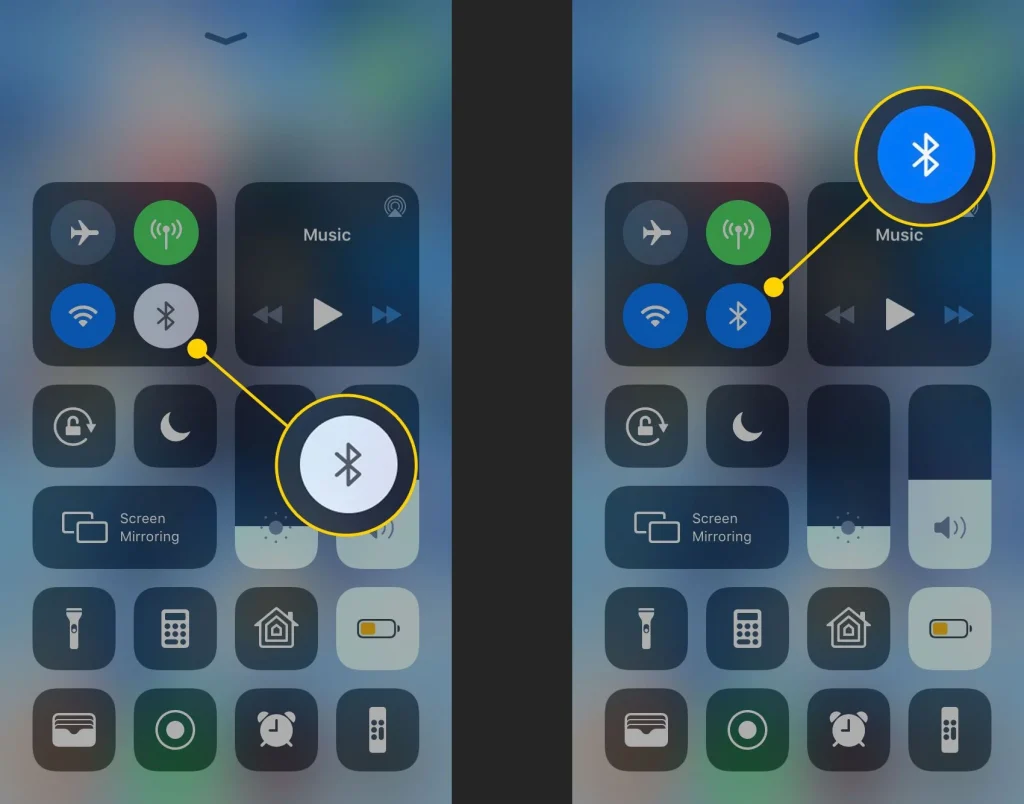
Before pairing, please enable Bluetooth and WiFi on both your phone and your vehicle. Swipe down on your iPhone to illuminate the Bluetooth and WiFi shortcuts. If you can’t find your car’s display’s Bluetooth, enable Bluetooth in Settings > Hotspot > Bluetooth, then connect using the Bluetooth name.
Check your smartphone’s compatibility
Many CarPlay-enabled in-car infotainment systems have specific phone operating system and version requirements for connectivity and usability, especially aftermarket head units and portable Apple CarPlay displays.
Most CarPlay systems and aftermarket head units are compatible with phones running iOS 13-16.5, and at least the iPhone 5 and above. However, it’s important to note that due to technical flaws and limitations, the latest versions of iPhone and iOS (such as iOS 17.2.1) are incompatible with some commercially available wireless CarPlay adapters and CarPlay displays.
Keep your operating system up to date
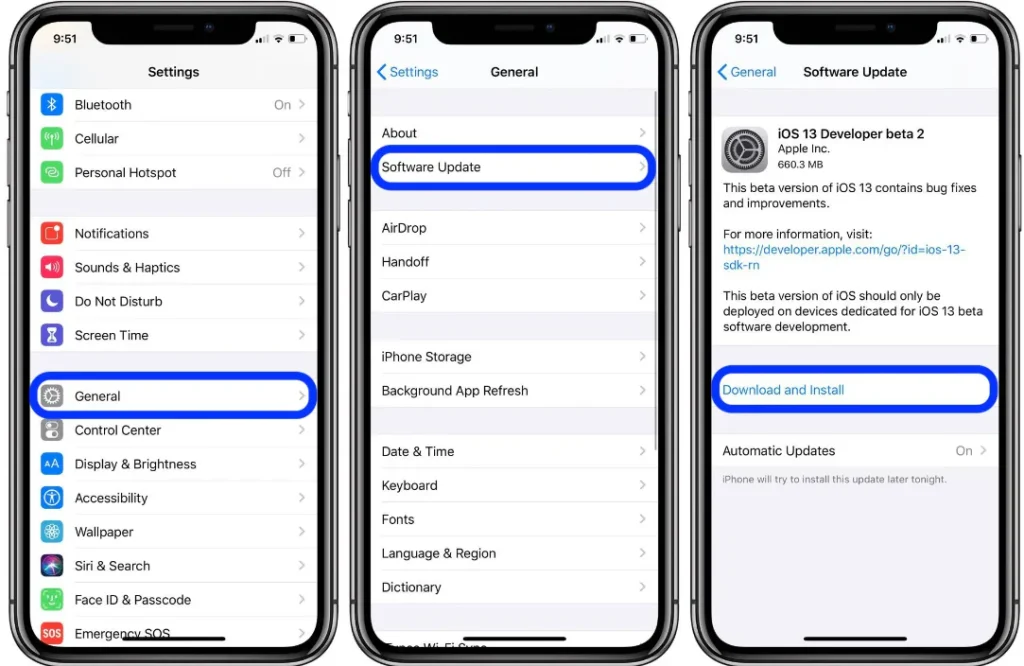
As CarPlay continues to evolve and update, the corresponding operating system and apps must also be updated to maintain the latest technical support. This is because some technical compatibility issues cannot be resolved by restarting the iPhone, Bluetooth, or CarPlay. However, these issues can be resolved with a quick software or operating system update. Therefore, it’s important to regularly update the CarPlay app and iOS version. Follow these steps to ensure your operating system is up to date.
1. Go to Settings on your iPhone.
2. Find the General option.
3. Click the Software Update option.
4. If a new iOS version is released, you’ll see an “Update Now” button on the next page, which can help resolve CarPlay issues. Click it to update the feature.
Make sure Siri is enabled and not locked
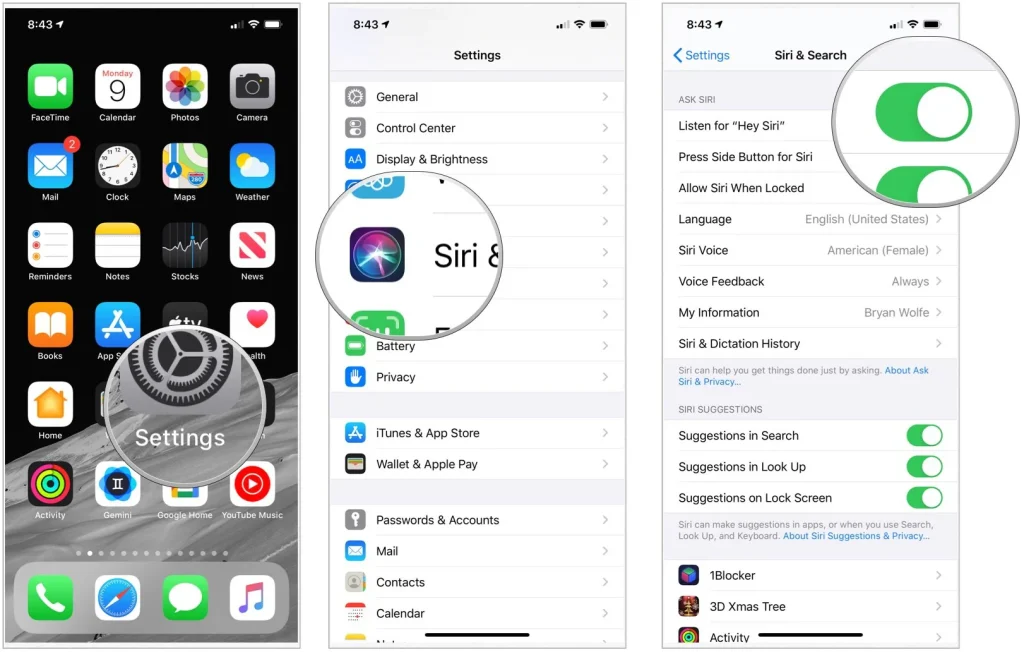
If you’re having trouble controlling CarPlay with Siri, it’s likely that Siri is disabled on your phone. Here are two easy ways to unlock the voice assistant if it’s unresponsive. One way is to wake Siri by pressing the voice control button on the steering wheel until the Siri icon appears on the car’s screen. The other way is to enable Siri by going to Settings > Siri & Search > Listen for ‘Hey Siri’ and toggling the “Allow Siri when locked” switch below it.
Conclusion
Most of us have likely experienced Apple CarPlay stopping, making it difficult to use our phone for navigation and music playback while on the road. However, by following these tips and steps, you can resolve issues affecting CarPlay and quickly restore it to normal operation. Enjoy safe navigation, your favorite FM radio, and the convenience of connecting with family anytime, anywhere.