
How to Use Zlink on an Android Car Stereo
Today, many cars are equipped with advanced infotainment systems like CarPlay and Android Auto, allowing you to connect your smartphone to the car stereo for access to important apps while driving. You may have heard of the smartphone integration feature called Zlink. In fact, in addition to the popular systems mentioned above, Mirrorlink is also a key component of Zlink, enriching modern car infotainment systems. With it, you can mirror your smartphone screen to the car’s head unit, turning your car into a home theater during long, boring journeys. Both iOS and Android users require Zlink to connect their phone to a compatible vehicle. What exactly is Zlink? How do you install and use it? This article will help you easily set it up.
What is Zlink?
ZLINK is an Android app that acts as a bridge, helping drivers use and enhance the functionality of CarPlay and Android Auto on incompatible displays. It serves as a valuable intermediary tool, ensuring that core features on your phone are also available in the car. Most Android car stereos are equipped with the Zlink app, which enables intelligent connection and interaction between your phone and the car stereo via Bluetooth and WiFi hotspots. More specifically, it allows you to mirror content from your iPhone (such as videos, movies, TV shows, and news broadcasts from YouTube/Netflix) to your car’s display, and access navigation apps, music apps, phone calls, and more via wired and wireless CarPlay/Android Auto. This way, you can focus on driving without distractions. Do you have an Android-powered car stereo or are planning to add one to your car? Please contact the Dickcar team.
Requirements for Using Zlink CarPlay/Android Auto and Mirrorlink
Zlink only works with compatible vehicles and car stereos. Before connecting your phone and car stereo via Zlink, there are some requirements you need to be aware of.
- Your vehicle must be equipped with an Android-powered car stereo with Zlink (Zlink5 is recommended).
- Your vehicle must have a USB port that supports wired CarPlay/Android Auto and wired Mirrorlink.
- You will need an original USB cable to connect your phone to the car’s display.
- Make sure both your car stereo and phone have the latest version of Zlink installed. If your phone doesn’t have Zlink5, download it from the Play Store.
- If you are an Android user, your Android phone must be running Android 11 or higher.
- Your Android phone must support Google services and have Android Auto, the Play Store, and other apps installed.
- If you are an iOS user, you must be running iOS 12-16.5 and your phone must be running at least the iPhone 6.
- When using wireless CarPlay/Android Auto and wireless screen mirroring, please ensure your smartphone has a good network connection and supports 5 GHz Wi-Fi.
- If you have obtained the above permissions, let’s move on to the specific integration process. Below we will introduce two simple methods:
- Integrating your car audio system with your smartphone via a wired USB cable or wireless Bluetooth connection.
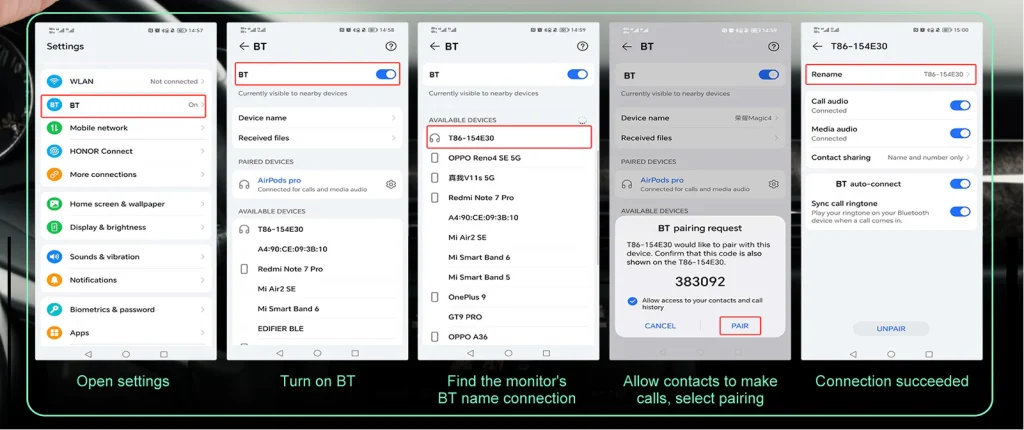
How to use CarPlay/Android Auto with Zlink
If this is your first time connecting, please note that the app requires activation, which requires an internet connection. Therefore, your head unit must be connected to the internet and then open the Zlink app for activation. After that, simply follow the steps to start connecting.
USB Connection
- Make sure the Zlink app is installed on your phone and updated to the latest version. If not, you can download it from the App Store or Google Play. In your car, open the Zlink app, select Wired CarPlay/Wired Android Auto, and connect your phone to your car stereo using the original USB cable. Using a third-party USB cable may cause connection delays or even failure.
- Once connected, the CarPlay/Android Auto icons will automatically appear on your car stereo and phone. Tap Confirm on your phone’s interface and wait for the connection to complete. You’ll then be asked to grant access to your location, contacts, text messages, and recordings. Simply tap “Allow” on any pop-up prompts.
- Once the setup process is complete, you’ll see CarPlay/Android Auto running on your car’s display.
Bluetooth Connection
- First, make sure your phone’s Wi-Fi and Bluetooth are turned on.
- Turn on your stereo’s Bluetooth and make sure it’s visible and recognized by other devices.
- Tap Bluetooth Settings to view your car stereo’s Bluetooth name and password.
- Find the stereo’s Bluetooth name on your iOS/Android device, enter the password, and connect. iOS users should ensure that CarPlay is enabled on your iPhone. You can easily find it in your connected devices and then authorize access. Remember to tap “Sync Contacts” below to make calls in your car. Alternatively, you can search for CarPlay directly and tap the option until the green “Turn On” appears.
- Once Bluetooth is successfully paired and connected, Zlink will automatically open on your car’s display, allowing you to use CarPlay/Android Auto.
- After the initial connection, the next time you start your car, as long as your phone’s Bluetooth is turned on, it will automatically connect without re-pairing.
How to Use Airplay/Android Cast with Zlink
Screen mirroring (Mirrorlink) is another interactive feature of Zlink. Again, it offers both wired and wireless screen casting. If your Android speaker and phone meet the requirements for wired/wireless CarPlay and Android Auto, you can also use this amazing feature. Now, let’s take a look at the usage guide. Before connecting, make sure Wi-Fi and Bluetooth are active on both your phone and car speaker.
USB Connection
For iPhone users who want to use Airplay, simply connect your iPhone to your car’s USB OTG port using the original USB data cable. This way, you can view your phone’s screen on the larger screen of your car. For Android users who want to use the Android screen mirroring feature, you’ll need to install the corresponding app on your phone to enable screen mirroring. You can scan the QR code as prompted on the car screen to download it. Then, open the app on your phone and select a connection method. Click “USB Connect” on the stereo to display a connection guide. Simply plug the USB cable into the stereo correctly to start screen mirroring.
Wireless Bluetooth/Wi-Fi Connection
Wireless connection steps are as follows:
- Click “USB Connect” on the stereo screen to access the USB connection guide (Android users only; iOS users can skip this step and proceed to Step 2).
- Click Step 2 to connect to the car’s Bluetooth (some models require a Wi-Fi connection).
- Your phone will then ask if you want to start screen mirroring from your phone to the car.
- Click “Start Now” and the car will display the screen on your phone.
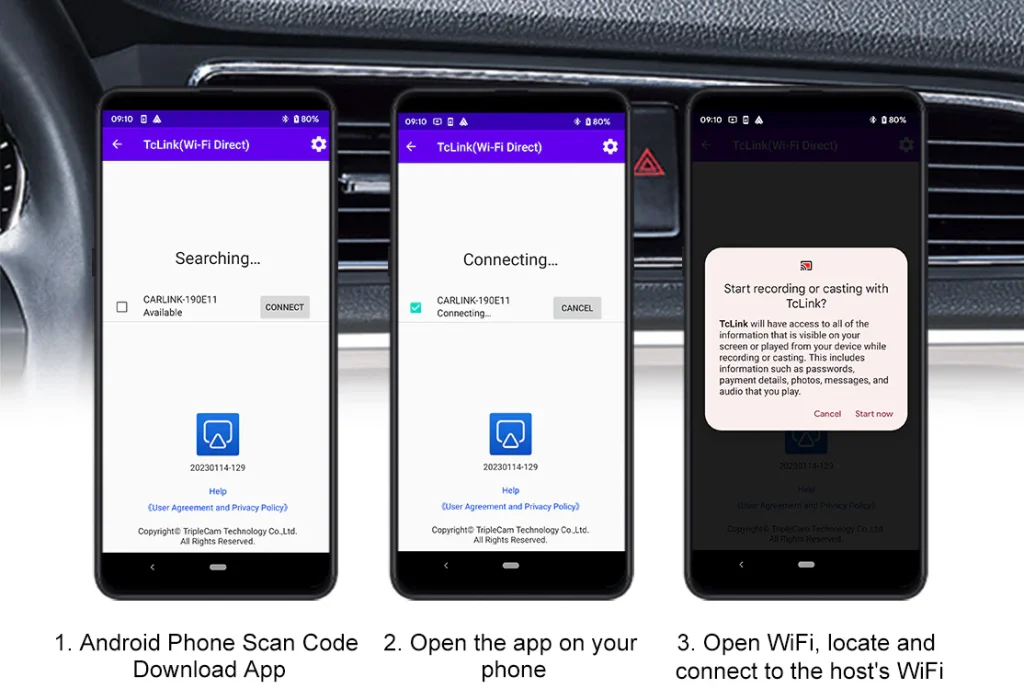
Quick Reminder
Whether using a wired or wireless connection, remember to adjust your phone’s screen to landscape orientation to ensure a full-screen viewing experience on the car’s screen. Android phones support two-way control. This means that when you cast your phone’s content to your car’s display via Android Cast, you can tap the car screen to access apps on your phone. This truly enables interaction between your car’s audio system and your phone, greatly facilitating in-car life.
With Z-Link, drivers can seamlessly share their smartphones on the car’s screen. Enjoy movies, live news, and other entertainment, making driving more enjoyable and relaxing. If your car lacks integrated smartphone audio, consider the Dickcar 7-inch single-DIN car audio system, equipped with Mirror Link functionality, a high-definition folding touchscreen GPS car radio receiver, and the latest Zlink5. As your driving companion, it’s sure to delight your journey. Dickcar is a professional car audio manufacturer and welcomes partnerships with all kinds of automotive product dealers, tuners, and repair shops. You can become a distributor or agent for our products.
How can I fix a Zlink CarPlay problem?
Sometimes, Zlink may not connect to your car audio system due to issues with your smartphone, car, or internet signal. If your Zlink isn’t working properly, here are some issues you can check and try to fix them.
Why can’t I connect my phone to my car’s head unit?
For a wired USB connection, please check if the USB cable you’re using is genuine. If not, replace it with a genuine one. We recommend using a 4-pin USB cable for Zlink connections, as it provides a more stable connection. For wireless Bluetooth connections, it’s best to double-check the steps to avoid missing important steps. In particular, make sure your phone’s Wi-Fi (some models require a hotspot) is turned on before pairing your smartphone with the car’s infotainment system via Bluetooth.
Why is my Zlink connection unstable or disconnecting suddenly?
This signal issue involves multiple factors, which we’ll troubleshoot one by one.For wired USB connections, there are two key points to keep in mind. First, use a 4-pin USB cable for the most stable and smooth experience. Second, check for loose cables. Compatible cables and stable connections are crucial for a smooth experience. For wireless Bluetooth connections, a common first step is to disconnect and reconnect Bluetooth. Second, ask your dealer for the relevant APK file to update the Android system and ZLINK software on your car stereo or phone to the latest version. If none of the above methods significantly improve the problem, you may want to consider whether there’s metal between the center console and the car console blocking Bluetooth and Wi-Fi signal transmission.
Why can’t I search my car stereo’s Bluetooth?
You can try restarting both your phone and the car stereo, then searching Bluetooth again.
Why is Zlink still unstable when connecting to my latest iPhone version?
Current Android car stereos may not be compatible with the latest iPhone versions, such as iOS 17, due to unsupported system settings. Our troubleshooting guide can address the main issues that may cause Zlink CarPlay to not work properly. If you have any further questions, please share your thoughts in the comments section.