Tesla Model X (may occasionally experience compatibility issues with our product, so we don’t recommend it for owners of this vehicle model.
If your model year is before 2018, the following conditions must be met when using Dickcar DT2C:
Browser support is required.
WiFi support is required (older cars may be unable to search for 5G signals, so you need to switch to 2.4G for the mobile device’s connection).
Tesla’s browser must be upgraded to Chrome 94 or a newer version.
Support iPhone 6 and newer IOS 10 or above.
Support Android phones with Android 11.0+.
Dickar DT2C Specifications
Model
DC200-DT2C
MFI
337S3959
Power Input
5V±0.2V⎓1.0A
Power Consumption
3W
WiFi Frequency
802.11a/b/g/n/ac, 2.4G+5G
Bluetooth Version
4.2
Material
ABS+PC
Color
Black
Surface Treatment
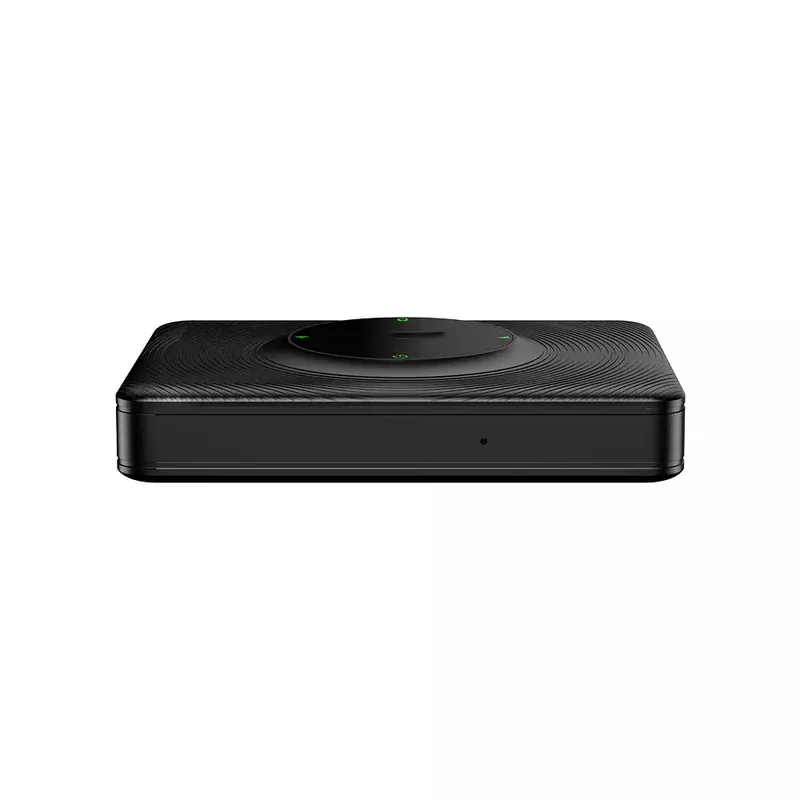
CD pattern
Pressing Method
Buckle
Compatible Mobile Phone
iPhone 6 and above, iOS 10 and above
Compatible Car
For Tesla all series model
Resolution
Adaptive (maintain the original protocol resolution)
Language
Automatically switch according to the vehicle language environment
Date Cable
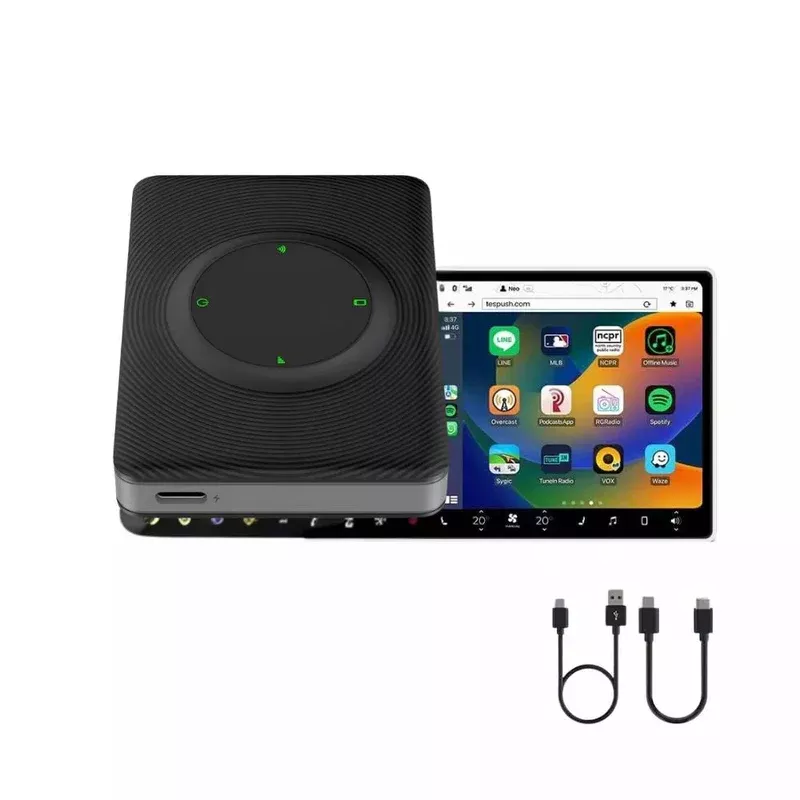
USB-A to USB-C*1 L=500mm
Connection Hints
Wireless connection
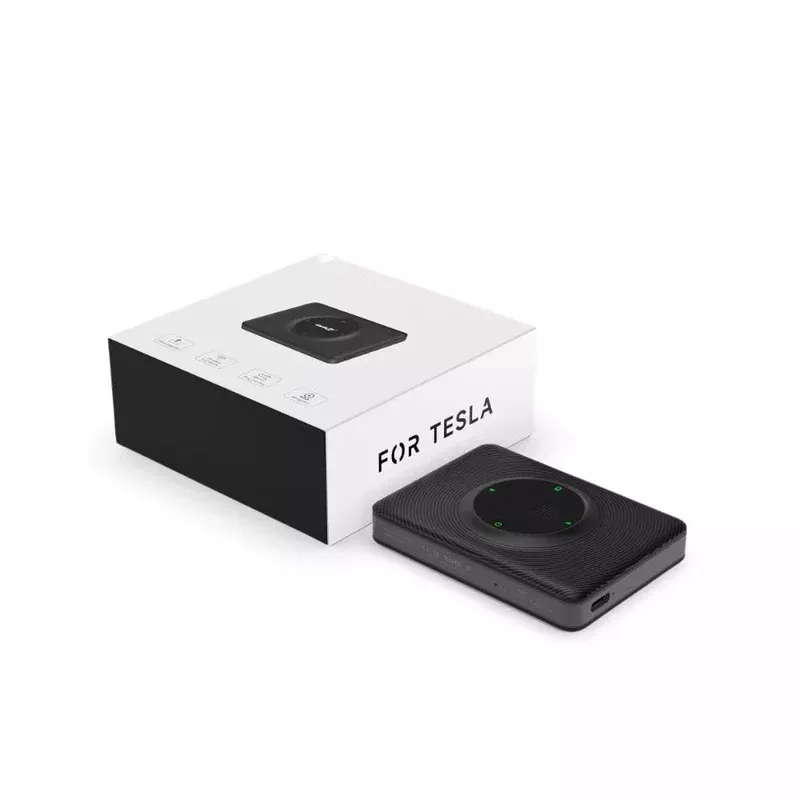
What is the Dickcar DT2C Tesla Apple CarPlay Adapter?
The Dickcar DT2C is designed specifically for Tesla and helps Tesla users upgrade to wireless CarPlay/Android Auto functionality. It works without a SIM card, allowing you to access the full functionality of CarPlay through your browser.
Wireless Apple CarPlay & Android Auto for Tesla
With the Dickcar DT2C Tesla CarPlay adapter, you can seamlessly upgrade your Tesla to feature wireless Apple CarPlay and Android Auto. Enjoy listening to music via your favorite applications, make phone calls, and summon Siri with just your voice. The Dickcar DT2C preserves Tesla’s original car screen operating system while enhancing it with an interactive interface, ensuring a quick start to Tesla CarPlay and smoother operation.
Activate Siri Voice Control in Your Tesla
If you are driving your Tesla alone and no one else can assist you in operating the screen, Dickcar DT2C could provide you with an aid to manipulate your Tesla. Just arouse Siri as you do on an iPhone, and then you can command your Tesla. Dickcar DT2C wireless adapter makes your car trip safer and more convenient.
Download More CarPlay Apps from the App Store
Open the App Store on your iPhone, type “CarPlay” in the search bar, and download your favorite compatible apps to enhance your in-car experience.
Enjoy Waze on Your Tesla Screen with Dickcar DT2C
With Dickcar DT2C, easily bring online map apps like Waze, Google Maps, Apple Maps, and more to your Tesla’s screen. Enjoy real-time traffic updates and precise navigation for a safer drive.
Split Screen for Multi-Tasking in Your Tesla
Enhance Your Tesla experience with Split-Screen functionality for Tesla Apple CarPlay. Effortlessly navigate between apps and enjoy seamless multitasking with our Dickcar DT2C wireless adapter.
Dual-Band WiFi (2.4G + 5G) for Stable Connection
Enjoy dual-band WiFi with both 2.4GHz and 5GHz frequencies for reliable, fast, and smooth data transmission. Experience stable connections and seamless performance with Dickcar DT2C Tesla CarPlay adapter.
How to Set Up Dickcar DT2C in Your Tesla?
1. Insert Dickcar DT2C into your Tesla’s USB port. Ensure your phone’s hotspot is turned on before connecting.
2. Search for “Autokit-XXX” in your phone’s Bluetooth settings and pair it. Then select “Enable Wireless CarPlay”.
3. On your Tesla’s screen, search for Autokit-XXX in the Wi-Fi settings. Enter the default password: 88888888. Once connected, check the option “Remain Connected in Drive”.
4. Open the browser on your car’s screen and go to tespush.com to start using Wireless CarPlay.
Note: After the connection is successful, go to the Bluetooth settings on your car’s screen and pair with your phone’s Bluetooth signal. Once paired, music and call audio will play through the car’s system.
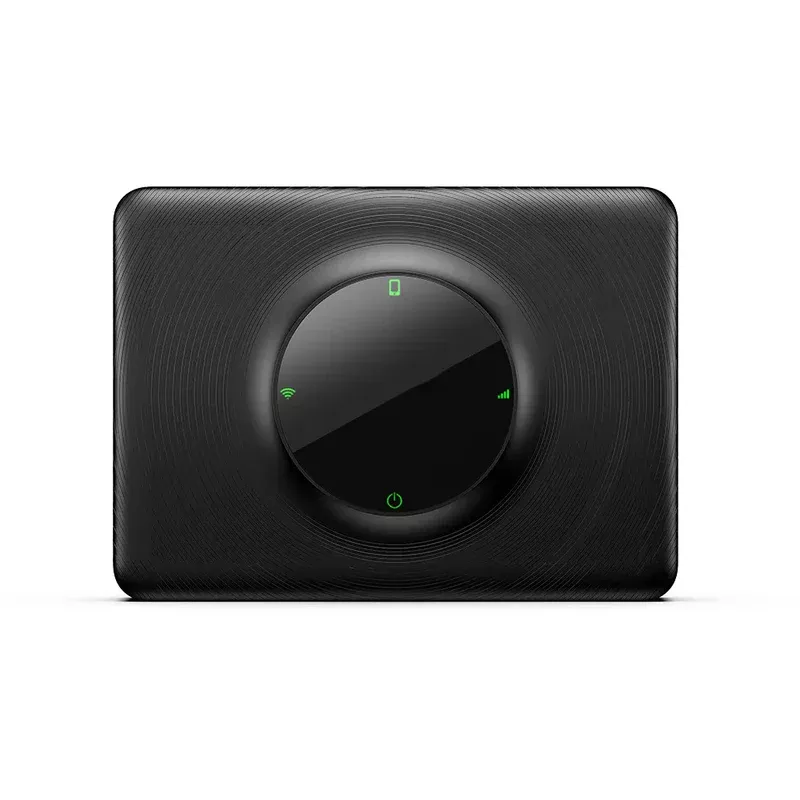
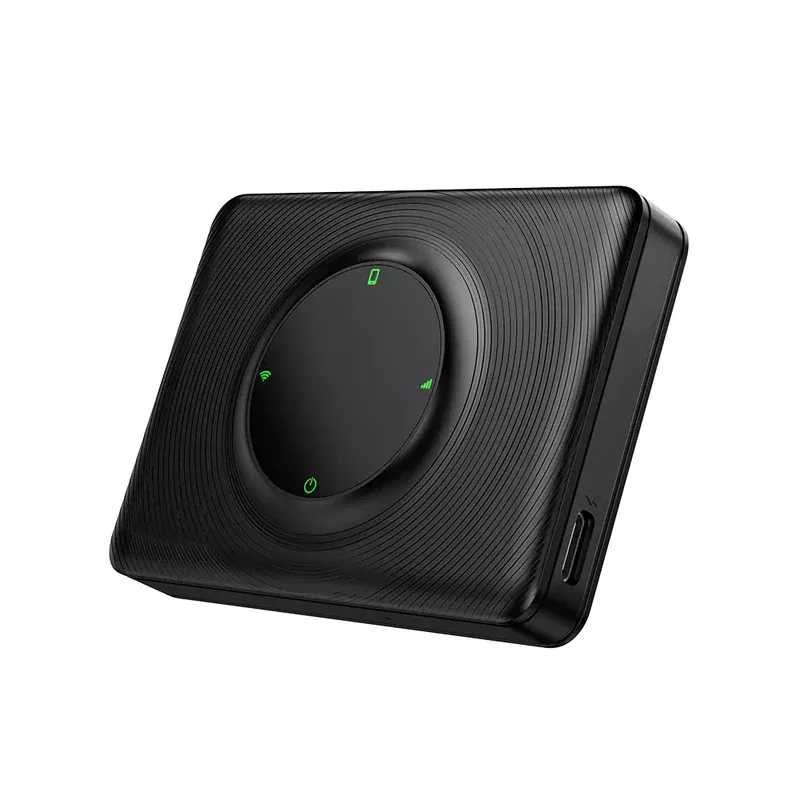
Dickcar DT2C LED Instructions
LED 1: Mobile phone interconnection status. Slow flashing after successful interconnection.
LED 2: WIFI connection status. Green light will keep on after a successful connection.
LED 3: Power status indication. The green light will keep on after powering on.
LED 4: 4G status indication. Greenlight will keep on after networking.
Packing List
Packing box * 1
Product * 1
Data cable * 2
Product manual*1
Tips
The latest version of Dickcar DT2C no longer requires a SIM card for operation. Instead, the device connects wirelessly through your phone’s hotspot, allowing you to enjoy Wireless CarPlay or Android Auto seamlessly in your Tesla.
The following countries and regions cannot use Dickcar DT2C products: Taiwan, Hong Kong, and Australia.
When using Dickcar DT2C in Israel, if there is a situation where the box WiFi cannot be found by both the mobile phone and the car, please try to modify the DT2C Wi-Fi channel to 36-44 (the reason is Israel only supports channels 36-44, and the DT2C box defaults to 149).
When accessing Tespush.com, if the car screen displays ‘Waiting for Connection,’ please note that this is not an issue with the box. Ensure your car system is connected to the Dickcar DT2C box’s Wi-Fi before visiting the website.
To upgrade the Dickcar DT2C Tesla Apple CarPlay adapter, please refer to this guide on how to upgrade the Dickcar DT2C.
Contact the Dickcar business team for a product quote
If you have any questions or concerns, please feel free to contact us. We look forward to your feedback. To better serve you and expedite our response, please provide your detailed requirements before contacting us.